

Configure roles and data sources
This guide is for permission administrators. Apply the principle of least required access.
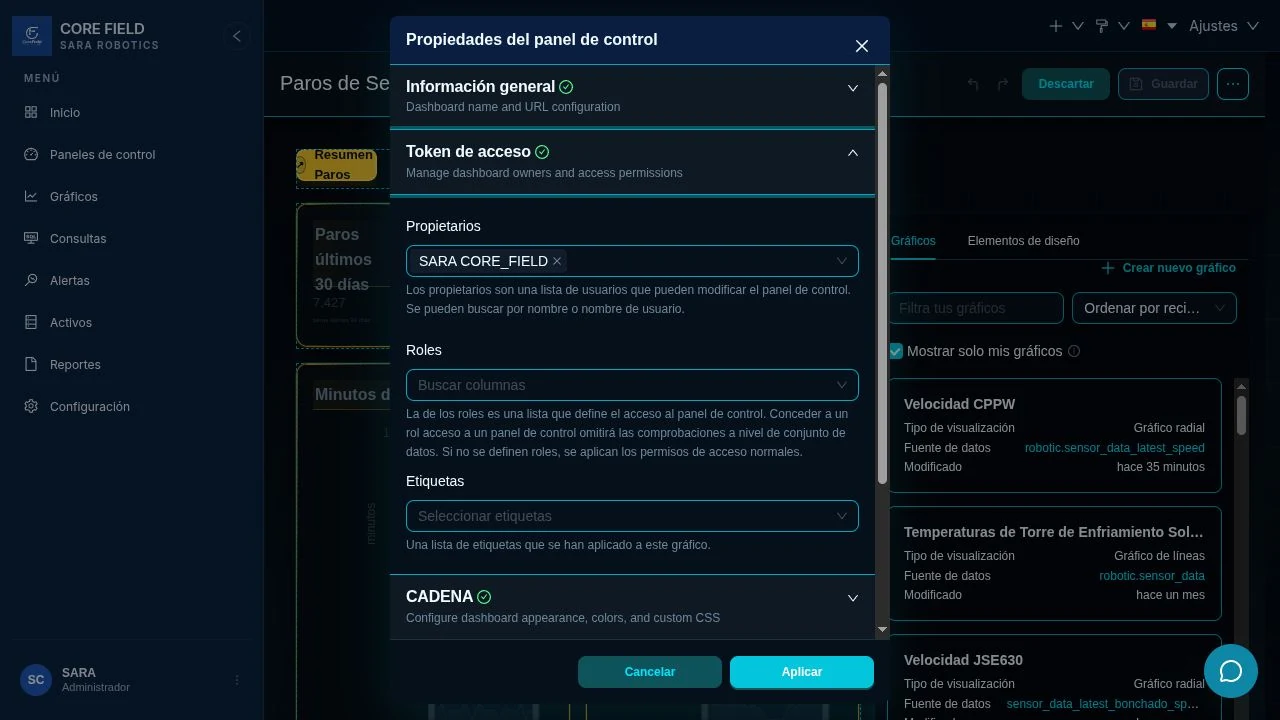
Owner does not mean reader
An owner can modify content. To grant read access:
- use an existing role when it already represents the group;
- create a limited role when access must be exclusive;
- do not make someone an owner just so they can view.
Add the exact source to the role
- Open Security → List roles.
- Edit the role receiving access.
- Search for
datasource accessunder Permissions. - Choose sources used by the dashboard, for example:
robotic.sensor_datarobotic.sensor_stopsrobotic.sensor_stops_daily_sensor
- Save.
- Ask the person to sign out and in if the change does not appear.
Zero, one, or several roles
- Zero explicit roles: normal security rules apply, and data sources still need permission.
- One role: access is limited to that group.
- Several roles: membership in any one is enough; they work like an “OR” condition.
Checklist
- The content has a real owner.
- The recipient belongs to an allowed role.
- The role has
datasource accessfor every source. -
all datasource accesswas not granted without a documented reason. - The test used the recipient’s account.