

CORE FIELD
Find, open, and reuse a chart
Before building something from scratch, check whether someone has already answered a similar question. Often, you only need to open a chart, change the time range, or use it as a starting point.
Open the chart catalog
- Select Charts in the side menu.
- Search by sensor, machine, or question. For example:
THHN_1,CPPW, orstops. - If you see too many results, filter by Type, Data source, or Dashboard.
- Use card view to scan names and dates without filling the screen with technical detail.
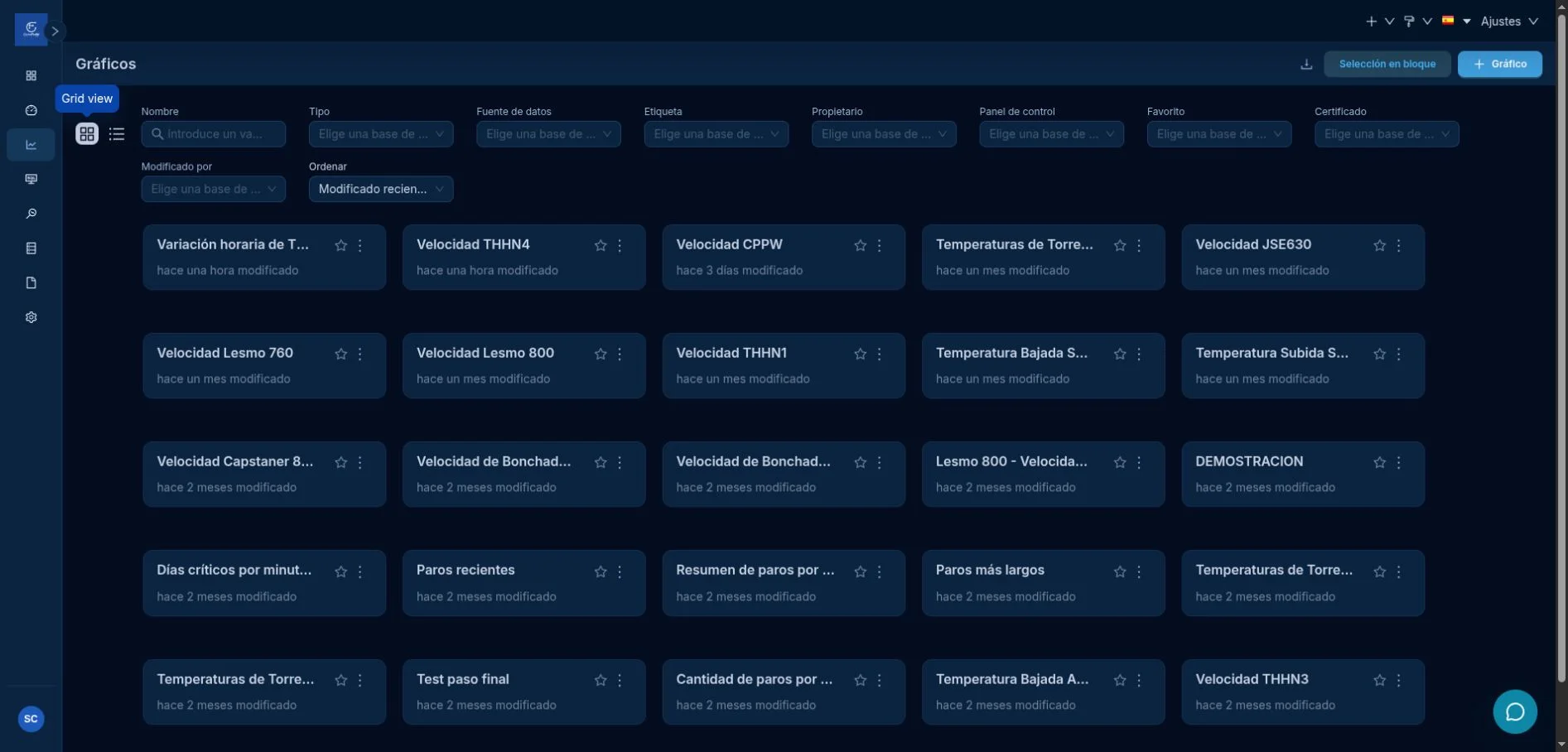
Choose the view for the task
Card view is best for navigation: it shows the name, last change, favorite, and actions. List view adds administrative detail for authorized users.
When you use the list, each column answers a useful question:
| Column | What it tells you |
|---|---|
| Name | The question or measurement represented by the chart. |
| Type | How data is displayed: line, waterfall, gauge, table, and so on. |
| Data source | The dataset feeding the visualization. |
| Dashboards | Where users can currently see the chart. |
| Last modified | How recently its configuration changed. |
Open it without changing it
Click the chart name. CORE FIELD opens Explore with its data source, columns, metric, filters, and result.
If you only need to inspect it:
- change the time range if needed;
- click Update chart;
- review the result;
- avoid clicking Save.
Edit the chart or create another one?
Edit the existing chart when you are correcting the same question and know which dashboards depend on it.
Save a copy when you will change the sensor, metric, chart type, or purpose. Give it a name that explains the new question—not just “copy.”
Quick THHN_1 example
Search for THHN_1 and open Hourly THHN_1 variation – last 24 hours. It is a waterfall chart that explains how much the sensor rose or fell each hour.
To rebuild it and understand every decision, follow the complete THHN_1 waterfall example.
You can also review the documented speed and temperature replicas, created as independent copies so the team’s live dashboards remain unchanged.