

CORE FIELD
Real sensor chart replicas
These recipes start from charts the team already uses. We created independent copies so readers can inspect their settings, capture a clean result, and practice without changing an operational dashboard.
First: copy without touching the original
- Open Charts and locate the visualization you want to study.
- Open its name and wait for the query to finish.
- Click Save.
- Select Save as….
- Enter a name beginning with
Ejemplo documentación —. - Leave Add to dashboard empty.
- Save and confirm the header says the chart is not on a dashboard.
From that point, every change belongs to the copy.
Recipe 1: current CPPW speed
This gauge answers: what is CPPW’s speed in the latest reading?
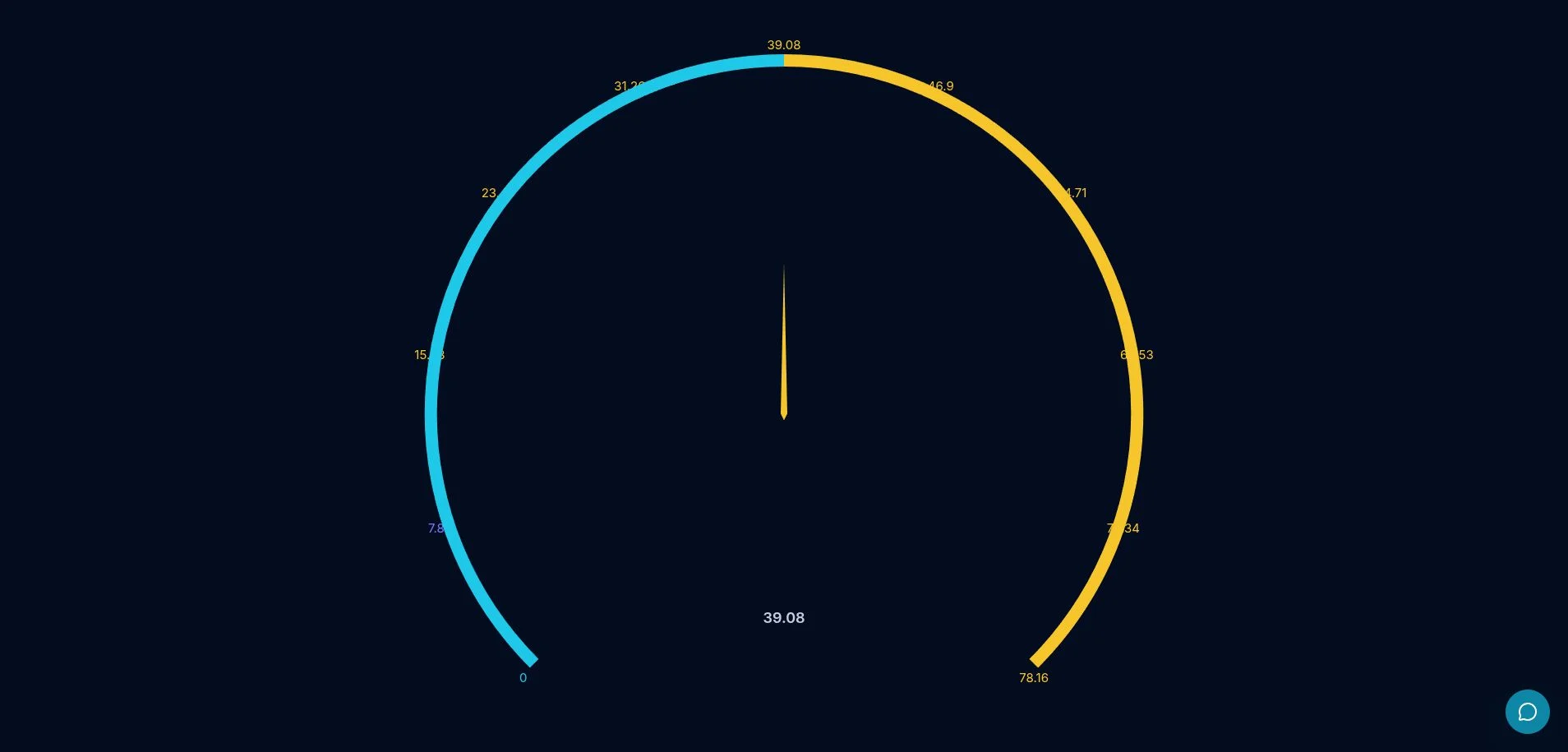
Data settings
| Control | Value |
|---|---|
| Visualization | Gauge chart |
| Metric | Current value |
| Filter | sensor = CPPW |
| Row limit | 10 |
Appearance
- start angle
225and end angle-45; - CORE FIELD Enerwire color scheme;
- pointer, animation, and progress enabled;
- interval limits
0, 10, 250, 300.
A gauge is useful for a current reading. Do not use it to explain how the value got there; use a time series for that question.
Recipe 2: Lesmo 800 speed trend
This line answers: did Lesmo 800 speed remain stable during the period?
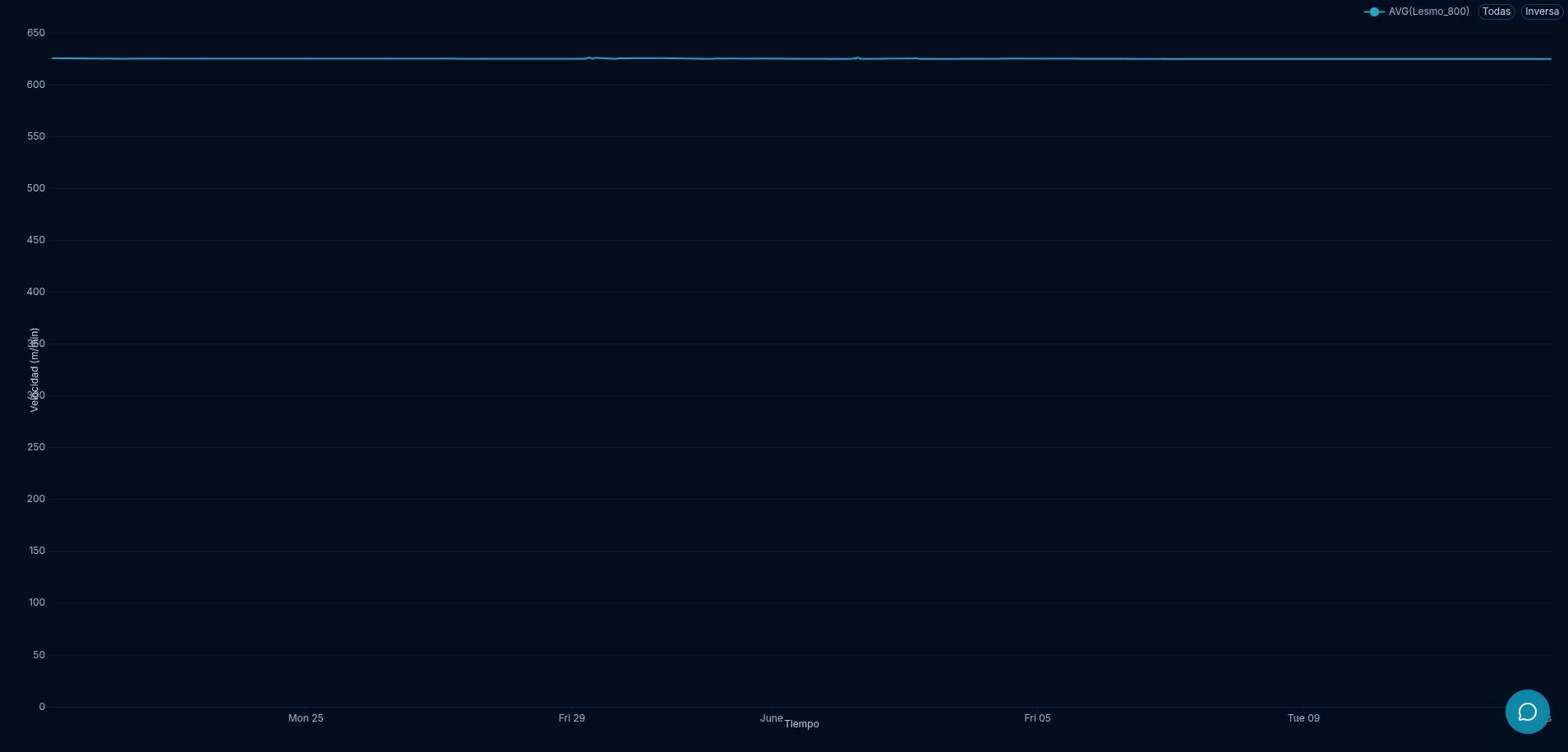
Data settings
| Control | Value |
|---|---|
| Visualization | Line chart |
| X axis | timestamp |
| Metric | AVG(Lesmo_800) |
| Visible range | Previous quarter |
| Series / row limit | 500 / 500 |
Appearance
- X axis: Time;
- Y axis: Speed (m/min);
- legend at the top;
- rich tooltip enabled;
- linear axis, no stacking, and no area fill.
For hourly changes, add a time grain. For small variations, keep more points and shorten the range.
Recipe 3: Soluble Building 3 temperatures
This comparison answers: how did the upward and downward temperatures behave together over the last six recorded hours?
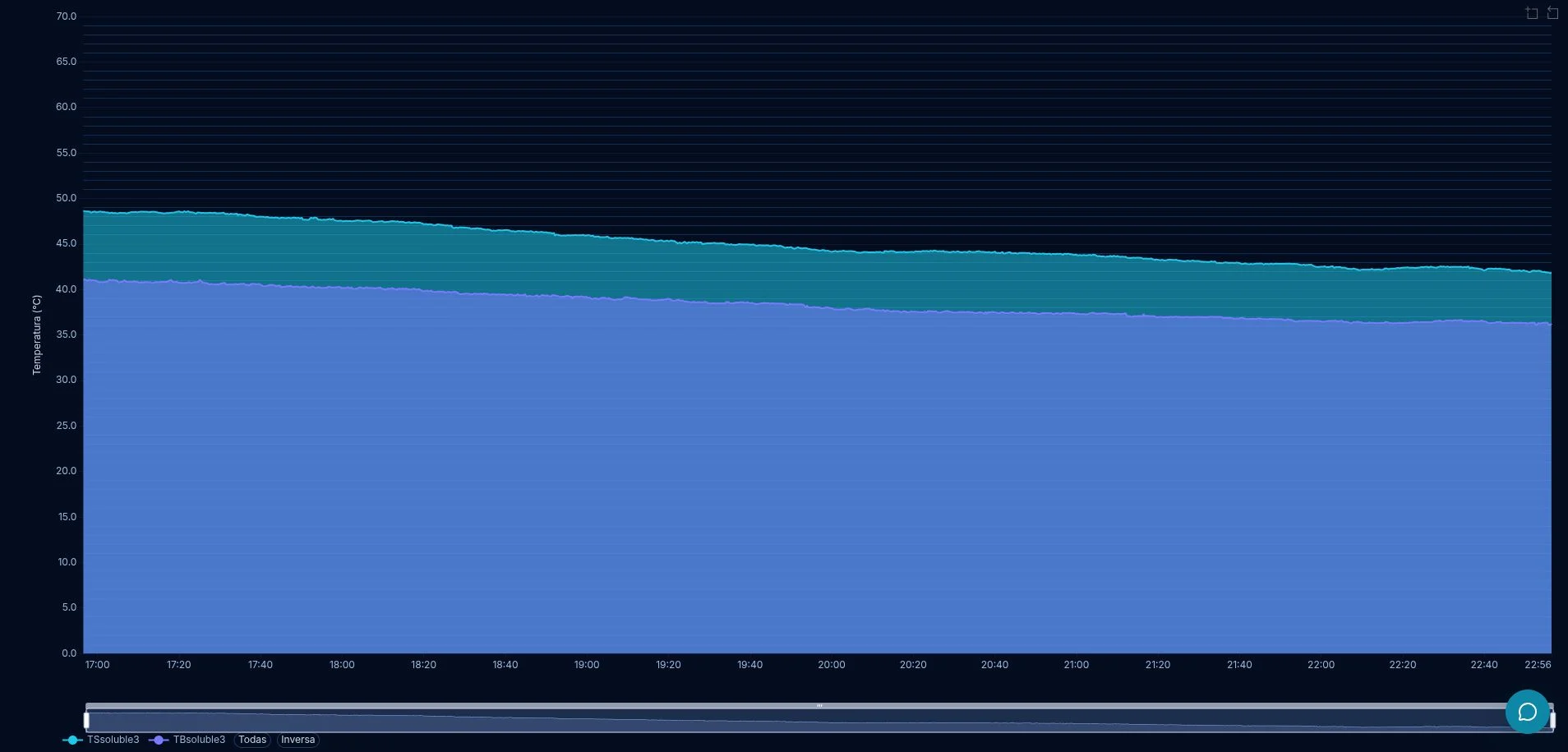
Data settings
| Control | Value |
|---|---|
| Visualization | Line chart with area fill |
| X axis | timestamp |
| Metrics | TBsoluble3 and TSsoluble3 |
| Filter | Last 6 recorded hours |
| Row limit | 50000 |
Appearance
- Y axis: Temperature (°C);
- CORE FIELD Enerwire color scheme;
- area, zoom, and bottom legend enabled;
- time shown as
HH:mm; - temperature shown with one decimal place;
- 30-minute visual interval on the time axis.
Area fill helps compare separation and shared movement. If the series overlap too much, reduce opacity or return to lines without fill.
Adapt a recipe to another machine
- Save a copy of the closest recipe.
- Change one thing at a time: sensor, metric, or period.
- Update and check row count, unit, and range.
- Rename the chart so it states machine, measure, and period.
- Compare it with the original before adding it to a dashboard.
You can open a copy, explain every control, and adapt the recipe to another sensor without changing visualizations already used by the team.